Setting up the assistant
FastECU can run a small server on your own computer so that an AI assistant that supports MCP (for example Claude Code or Claude Desktop) can look at the ROMs, definitions and datalogs you have open.
What the assistant reads (tables, log values, notes) is sent to the AI service that the assistant uses. Do not turn this on for files you are not allowed to share.
Requirements
- An active license, the same as for ECU access. Without one the tools refuse to answer, and the settings page says why.
- Not available in the Windows 7 build, which has everything else. There the Assistant tab is greyed out and explains why.
- An AI assistant or client that can talk to an MCP server over HTTP.
Turn it on
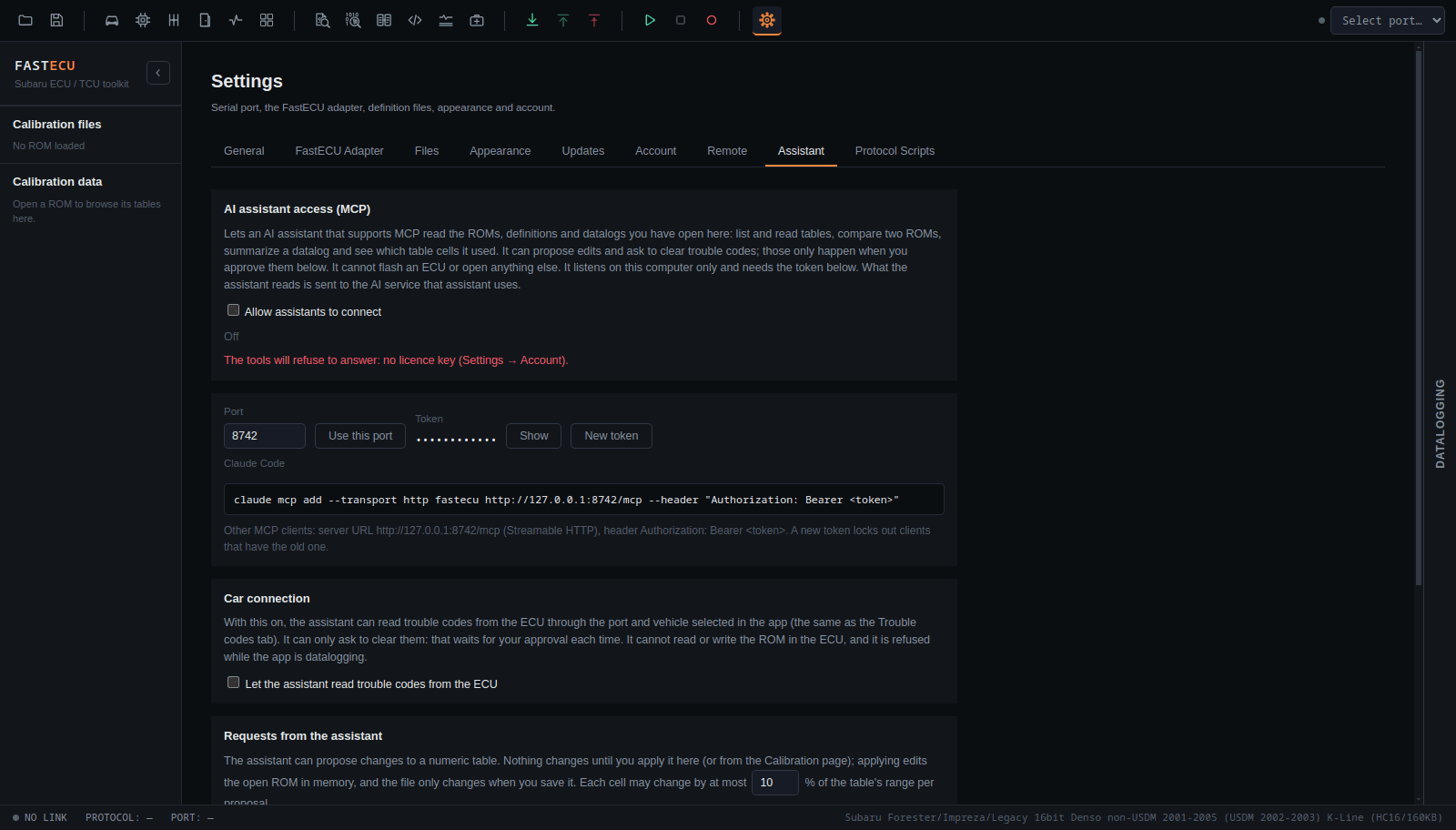
- Open Settings › Assistant.
- Tick Allow assistants to connect. The line below it changes from Off to Listening at http://127.0.0.1:<port>/mcp.
- The server listens on this computer only (127.0.0.1). The default port is 8742. Change it in the Port field and press Use this port if something else uses it.
Connect an assistant
Every client needs the token shown on the page. Press Show to see it; New token creates a fresh one and locks out every client that still has the old one.
Claude Code
The page shows a ready-made command. It looks like this, with your real token in place of <token>:
claude mcp add --transport http fastecu http://127.0.0.1:8742/mcp --header "Authorization: Bearer <token>"
Other MCP clients
Use the server URL http://127.0.0.1:<port>/mcp (Streamable HTTP) and send the header Authorization: Bearer <token>.
Then
Open some ROMs in FastECU and ask the assistant about them. What the assistant can do lists what it can read and what it can only ask you for.
Anyone on your computer who has the token can use the server while it is on. Turn Allow assistants to connect off when you are not using it.