Pairing & using it
Pairing is done in Settings › Remote in two separate steps: first get a token, then connect.
Tuner (Server)
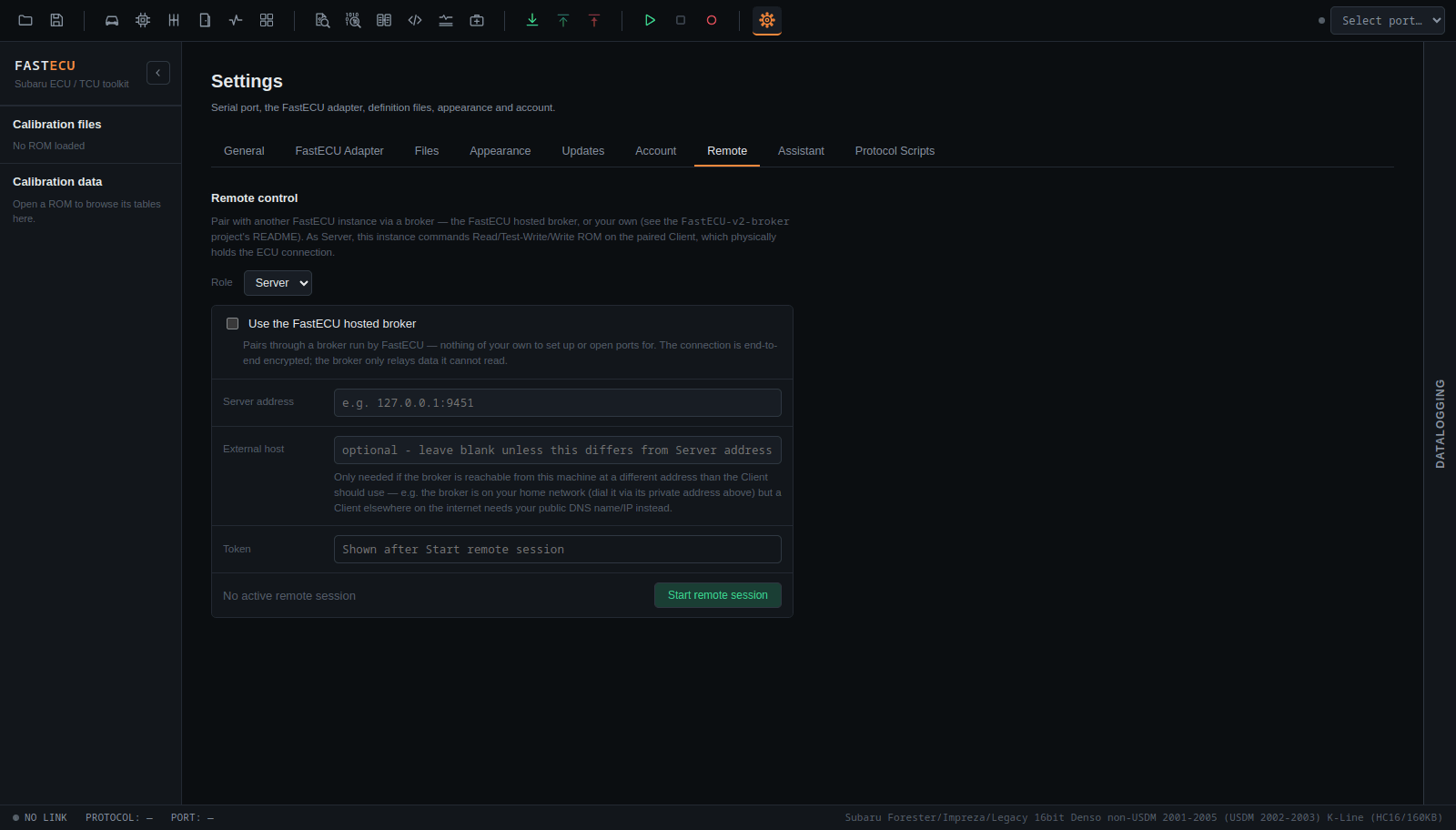
- Open Settings › Remote and set Role to Server.
- Choose the broker:
- Use the FastECU hosted broker (tick the box): nothing to set up or open on your network. The website names the broker when the session starts.
- Or enter the Server address of your own broker, for example
127.0.0.1:9451. The optional External host is only for when the Client reaches the broker through a different address than you do, such as a public DNS name for a broker on your home network. Leave it blank otherwise.
- Press Start remote session. This registers the session with the FastECU website and shows the token. Read it to the Client or paste it into your chat.
- Press Connect to dial the broker. When the Client connects, the status says A client is connected.
Car owner (Client)
- Plug your adapter into the car and your computer, as in Hardware you need.
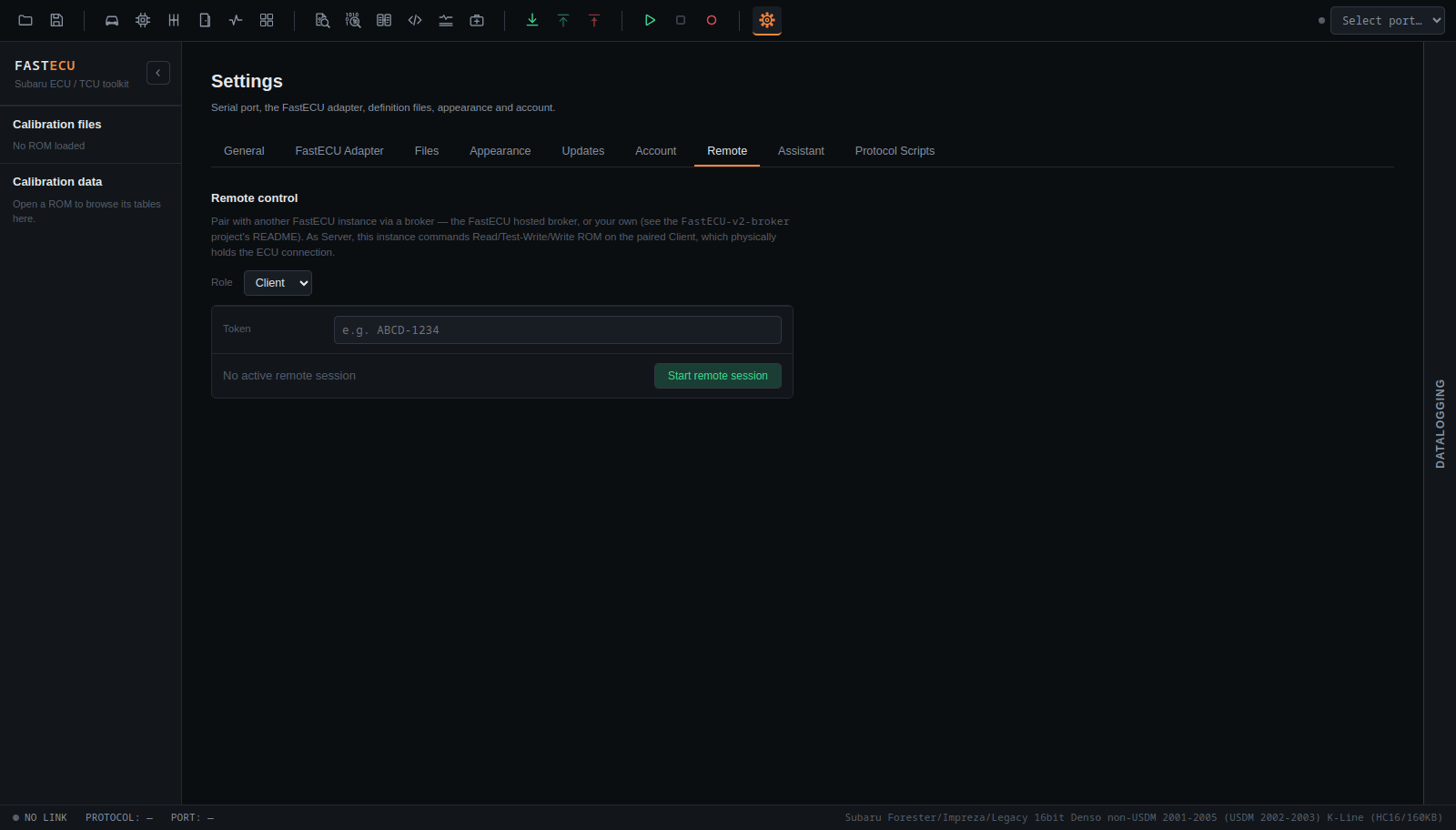
- Open Settings › Remote, set Role to Client and paste the token you were given.
- Press Start remote session, then Connect. When it says Connected to the server, leave the program running.
You do not choose the serial port. The tuner picks one of your ports from their own port list.
Reading and writing remotely
- As the Server, use the normal buttons: Read ROM, Test Write ROM and Write ROM (the toolbar, or the ECU and TCU pages). While paired they run on the Client's ECU.
- The Server's port selector (toolbar and Settings › General) lists, opens and closes ports on the Client's computer while paired.
- The Client gets a confirm prompt for each read, test write and write. Follow the same advice as for a local write: see Reading & writing ROMs, including the backup and Test write.
Connect, disconnect and ending a session
- Connect and Disconnect dial and undial the broker with the token you already have. You can press them as many times as needed, for example after a network drop, without a new token.
- Only End remote session throws the token away. After that you have to start a new session and use a new token.
Step-by-step guide to running your own broker: coming soon
This is not ready yet. Check back later, or ask on the forum.