Reading & writing ROMs
The ROM tab of the ECU (and TCU) page reads the ROM out of the control unit and writes a changed one back.
An interrupted or failed write is the most serious thing that can go wrong with FastECU. Follow the checklist below every time, and never skip the backup.
Test write, write and read-back are recorded as done on a real ECU for the 2002-03 16-bit K-Line Subaru ECUs (stock boot loader and EcuTek). Every other protocol is implemented, but has not yet been marked as tried on a real ECU. That includes the 2004-05 16-bit K-Line ECUs, the SH7055/SH7058 K-Line and CAN ECUs, and all Hitachi, Mitsubishi and Unisia Jecs ones. If yours is one of those, treat the first read as a test and do not write unless you have a way to recover the ECU.
Before you start
- Power: use a charger or battery maintainer. Turn off lights, blower and radio. Keep the laptop on mains and awake.
- Cable: use a good one and do not touch it during the operation.
- Have the original ROM: read it first and keep that file safe, separate from the ones you edit.
- Know your protocol. The protocol in the connection card has to match the ECU.
The ROM tab
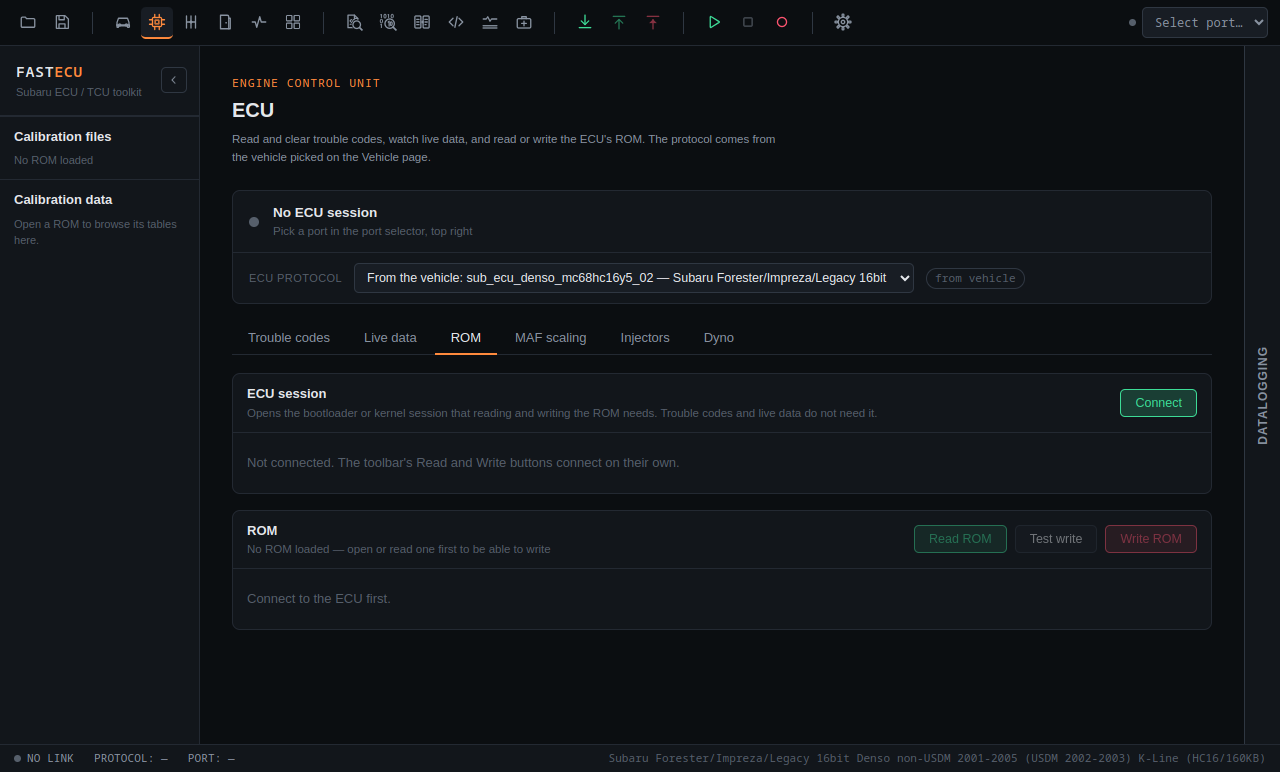
It has two cards:
- ECU session with a Connect button. Connecting opens the bootloader or kernel session that reading and writing need, and shows the unit's ID, VIN and calibration ID.
- ROM with Read ROM, Test write and Write ROM. They are enabled once you are connected, and the two write buttons also need a ROM to be loaded.
The same three buttons are in the toolbar (Read ROM, Test Write ROM, Write ROM). They act on the TCU while the TCU page is open and on the ECU everywhere else, and they connect on their own, so you do not have to press Connect first.
Trouble codes and live data do not need this session, so you can use them without starting it.
Step by step
- Activate your license key. FastECU checks it first when you connect, before it opens the bootloader or uploads anything.
- Choose the vehicle and your port.
- On the ROM tab press Connect to start the session. For some ECUs this goes through the stock bootloader, for others through the running diagnostic service with a seed/key exchange.
- Check the identification the ECU reports (ROM ID, calibration ID, VIN).
- Read ROM. The ROM is read into the Calibration page as a loaded ROM; it is not saved to a file by itself. Use Save ROM As in the toolbar to save it. This is your backup. Compare it with a known-good copy if you have one.
- Make your edits in the Calibration page, then Save ROM As under a new name. Check the checksums in the Hex editor's Checksums panel. Write ROM writes the active ROM, shown on the card, so make sure the one you want is active.
- Test write first. It runs the complete write session, exactly as a real write would, but with the actual writing disabled, so nothing in the ECU is erased or changed. If it succeeds, the card says how many blocks it validated and that it is safe to perform a real write. If the ROM is the same as what is in the ECU it says no differences were found.
- Write ROM. FastECU asks you to confirm, because this flashes the unit for real. Do not disconnect, close the app or turn the ignition off until it reports it is done.
- Read the ROM back and compare it with what you wrote.
How the 16-bit K-Line ECUs are handled
- 2002-03: through the stock bootloader.
- USDM 2004-05 ("wrx04"): through the running SSM service with a seed/key and an encrypted kernel upload. Stock and EcuTek ROMs are supported. Not yet tried on a real ECU.
Both end in the same flash kernel.
If a write fails
- Do not turn the ignition off or unplug anything. Try the write again.
- Save the system log (Settings has a system logger; it keeps your recent logs) and send it when you ask for help on the forum.
This is not ready yet. Check back later, or ask on the forum.