Calibration editor
The Calibration page is a desktop of floating windows. Each table you open gets its own window, and you can edit any number of them side by side.
Edits stay in memory
Changes are made to the ROM held in memory. Nothing goes to a file or the ECU until you use Save ROM As or write the ROM. You can undo any change.
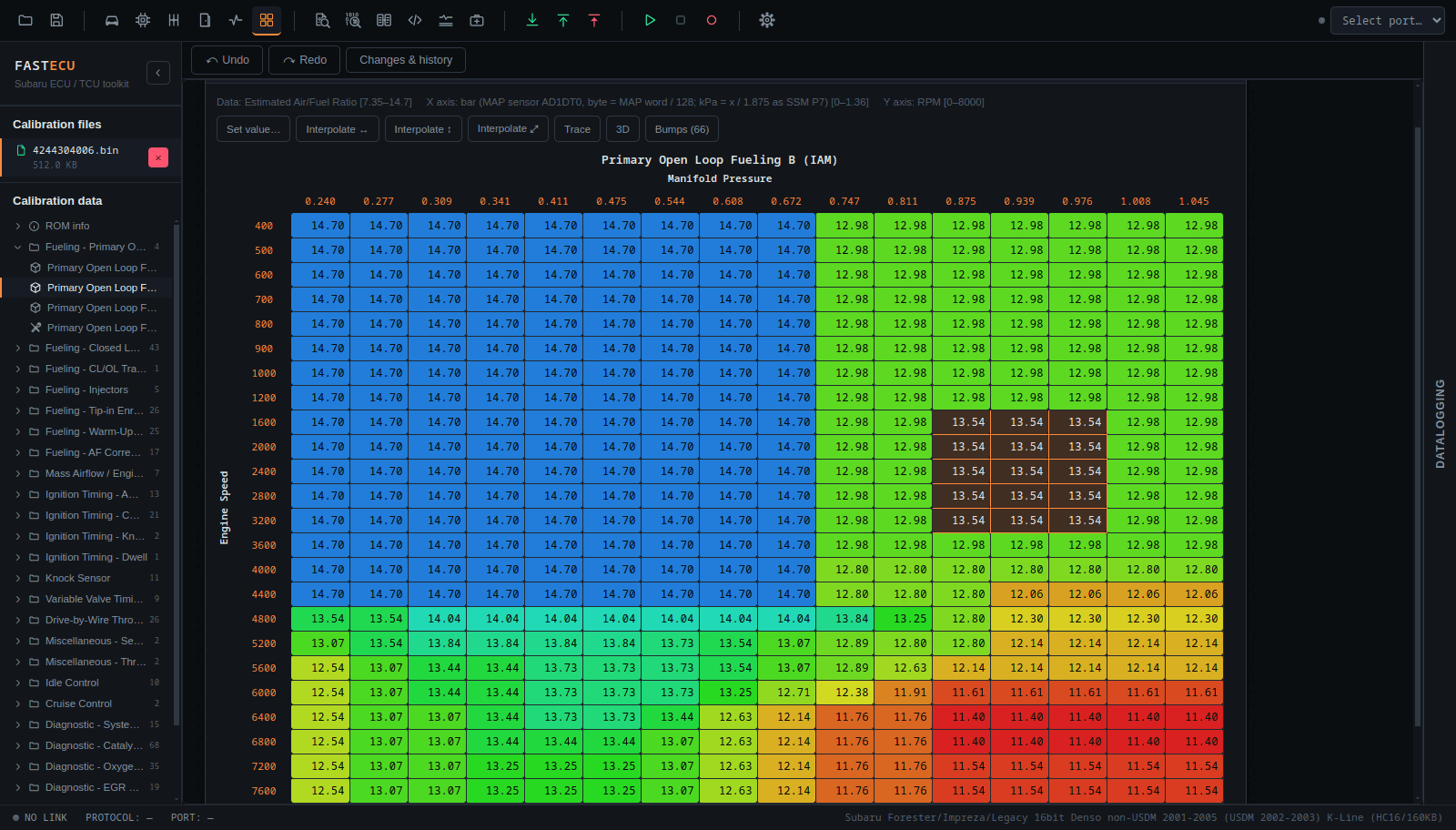
Open tables
Click a table in the sidebar's tree. It opens in its own window. Windows can be dragged by their title bar, resized from the bottom-right corner, minimised, maximised and closed. Clicking a window brings it to front, and each loaded ROM remembers its own windows with their positions and sizes.
The grid
- 1D, 2D and 3D tables are shown as a grid with the axis breakpoints across the top (X) and down the left (Y) when the axis comes from the ROM.
- The cells are coloured from the table's own minimum to its maximum.
- The line under the title shows what the table holds, its range, and what the axes are.
- Axes can be edited only when they are backed by ROM data. An axis written into the definition itself (such as gear numbers) is read-only.
Select and edit
| Action | How |
|---|---|
| Select cells | Click a cell, or click and drag a rectangle. The grid, the X axis and the Y axis each select on their own. |
| Step up or down | + and - change every selected cell by the fine increment of the scaling. Hold Ctrl for the coarse increment where the definition has one. The step works on the raw stored value, so it never rounds away. |
| Set value… | Type an operation applied to all selected cells: +20, -20, *1.1 (or x1.1), /2, or just 20 to replace. Results stay inside the table's allowed minimum and maximum. |
| Interpolate | Three buttons: horizontally (each row between its own left and right edge), vertically, or from the four corners of the selection. |
| Copy and paste | Ctrl+C copies as tab-separated values through the system clipboard; Ctrl+V pastes anchored at the top-left of the selection. It works between tables, between ROMs, and with a spreadsheet. |
| Undo, redo | The Undo and Redo buttons above the workspace, or Ctrl+Z and Ctrl+Y. |
3D view and bump finder
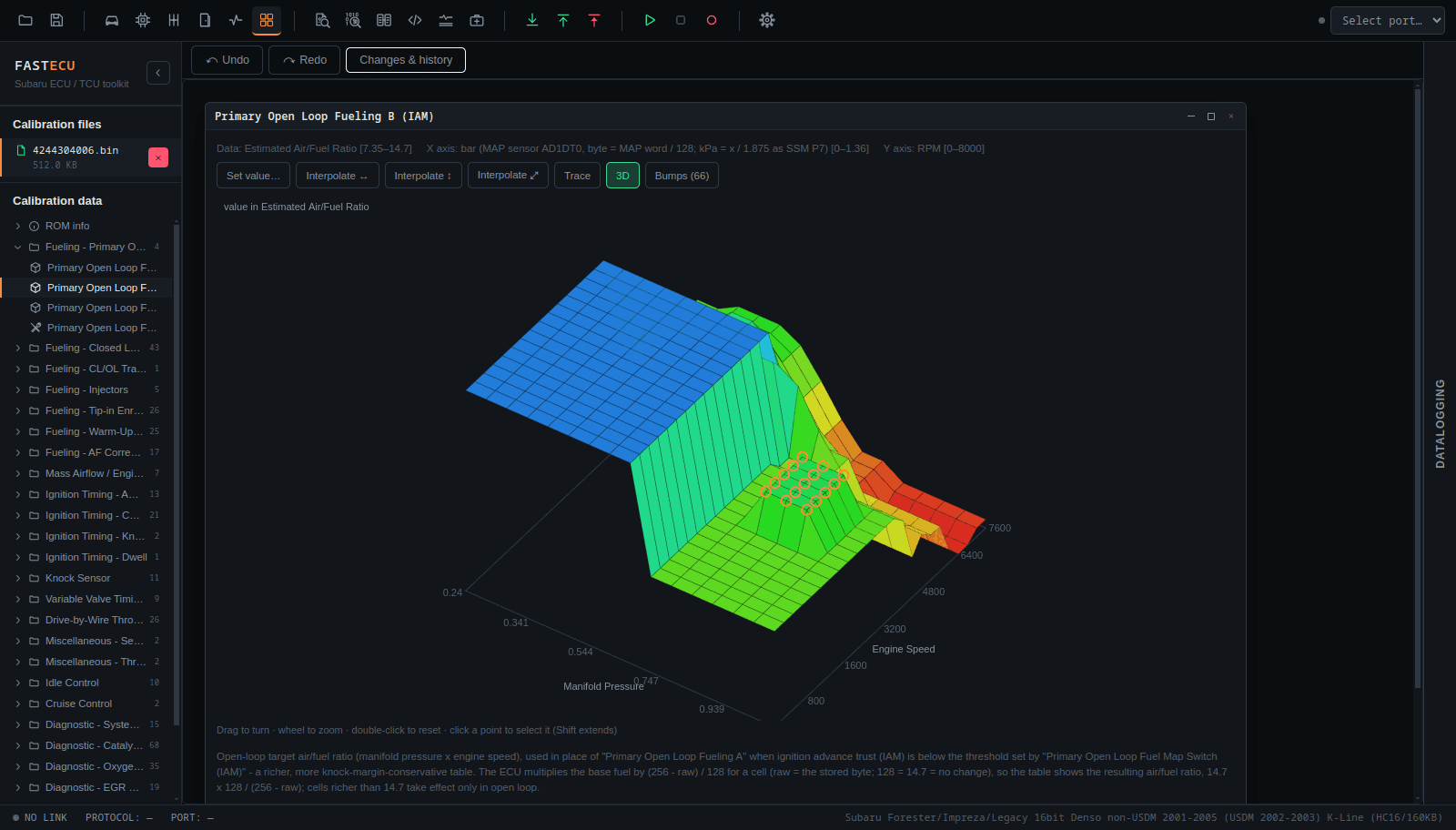
- 3D draws the table as a surface you can turn. Click a point to select that cell (Shift extends a rectangle), so +, Set value, interpolate and paste also work from the 3D view. A table with one row or column is drawn as a line.
- Bumps marks cells that stand out from their neighbours, such as spikes and dips. They are often a typing slip or a bad log correction. The marked cells are red on the surface and outlined in the grid, with a count on the button.
Before you write the ROM
- Check the changes in Changes & history.
- Check the checksums. The write sequences correct checksums before writing and tell you how many blocks they changed, but checking first is better.
- Save ROM As under a new name, then follow Reading & writing ROMs.