Ports & adapters
Every function that talks to the car (trouble codes, logging, reading and writing, the bus monitor) goes through the port or adapter you pick in the toolbar.
The hardware itself is described in Hardware you need. This page is about using it.
Pick the port
The port selector at the right end of the toolbar (it says Select port… until you choose one) (and the same list in Settings › General) shows what is available, in this order:
- A FastECU adapter connected by USB, listed first, once.
- FastECU wireless adapters on the network.
- Other USB serial devices: K-Line cables and Tactrix OpenPort.
- Plain serial ports.
- On Windows, the J2534 drivers registered on the computer.
The ECU, TCU and BIU pages each have a connection card showing the port in use and the link state.
One connection at a time
A plain serial port and a J2534 device share a single connection slot. That means:
- The Bus monitor connects when you press Start and releases the adapter on Stop. While it runs, logging and ECU operations cannot use it.
- Datalogging keeps the connection while it runs.
- Stop one function before starting another. FastECU opens the protocol channel only when a function needs it and closes it afterwards.
The FastECU wireless adapter
Settings › FastECU Adapter is where you manage it:
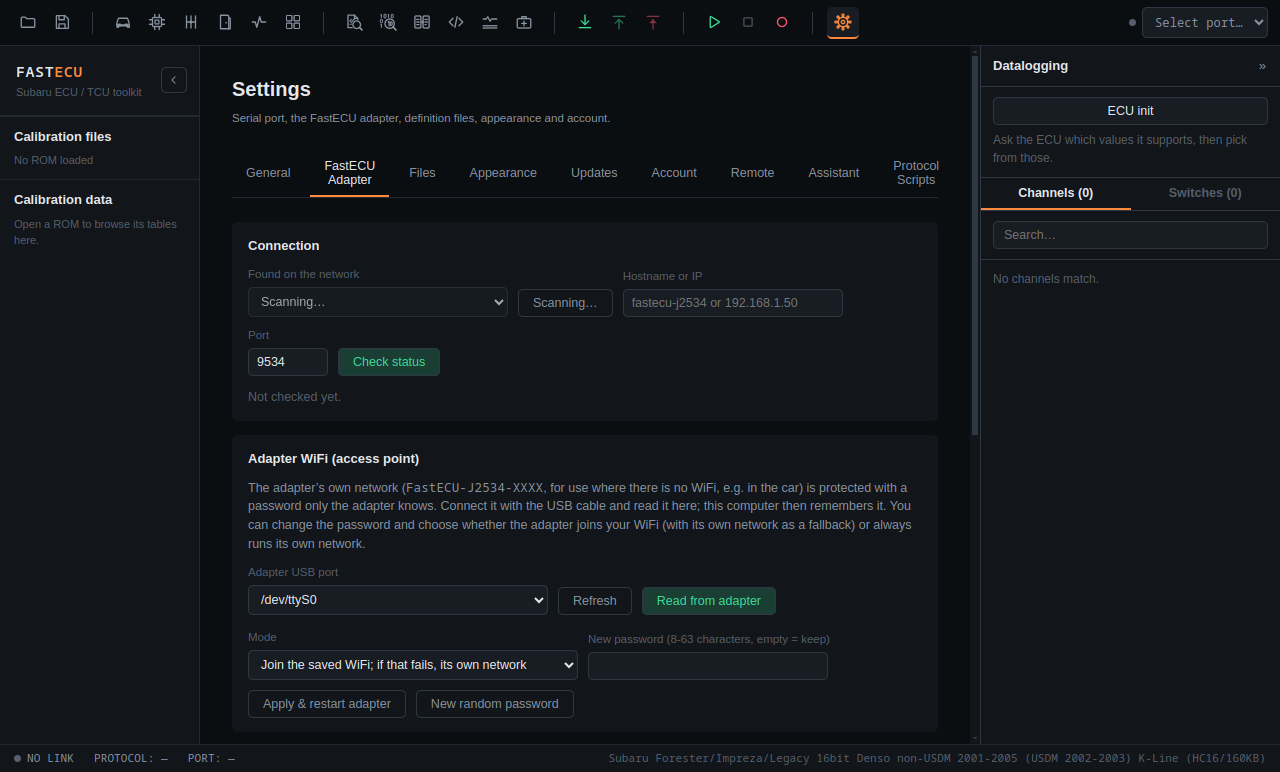
- the connection (USB or WiFi),
- its WiFi password,
- firmware updates,
- its USB identity (presets for FastECU or Tactrix OpenPort 2.0, so another program such as EcuFlash can recognise it, or custom values).
USB and WiFi connections and over-the-air firmware updates are verified on real adapters. The adapter's CAN and K-Line interfaces have not yet been tested against a car.
Using the adapter with other programs (Windows)
FastECU also provides a J2534 PassThru driver (DLL) for the adapter, so other J2534 programs can use it. On Windows the installer offers the adapter's USB driver, which makes it appear as a COM port.
This is not ready yet. Check back later, or ask on the forum.