Hex editor & checksums
The Hex editor shows the raw bytes of a ROM and has tools for finding tables, seeing the ROM's layout and checking checksums.
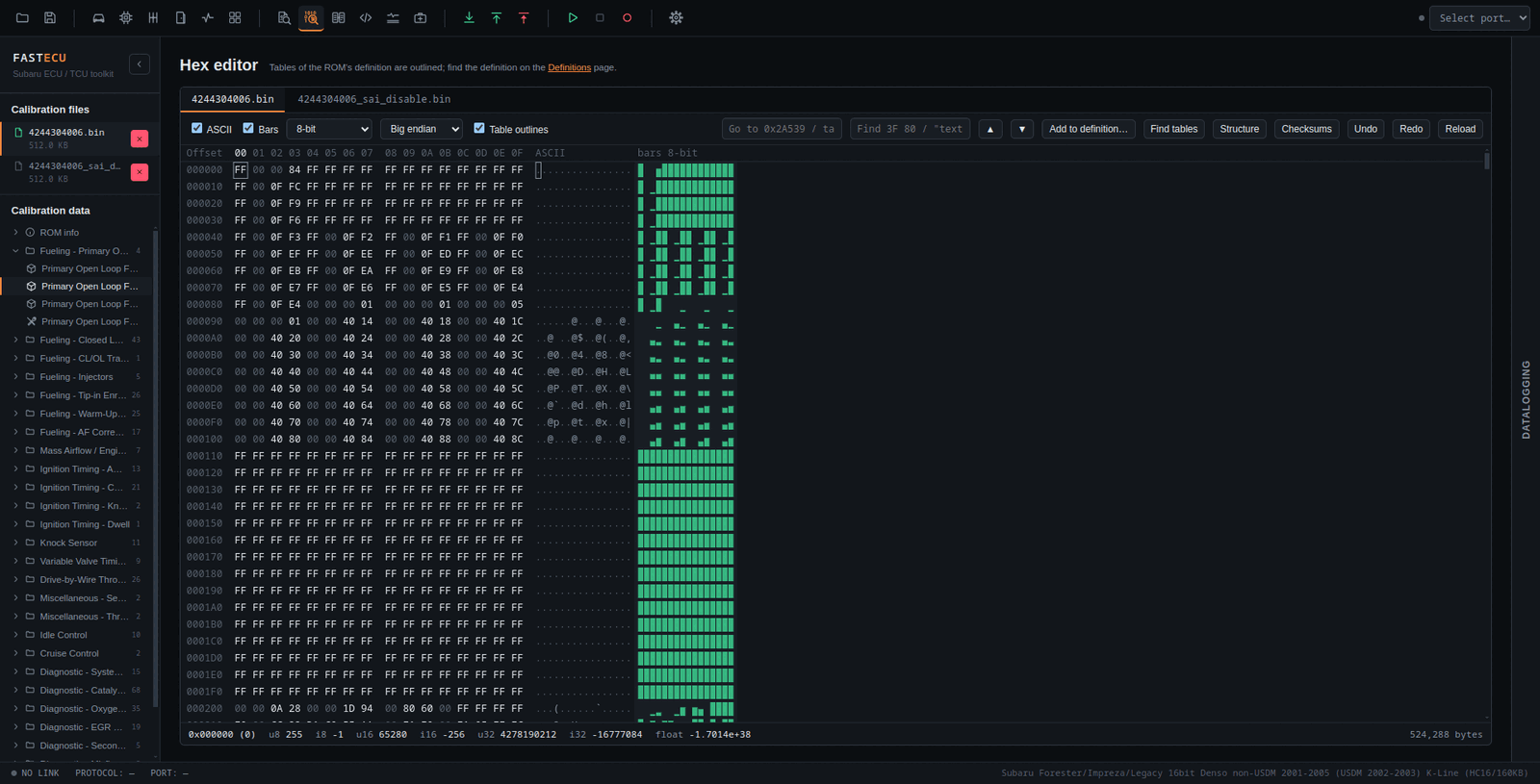
The dump
- One tab per loaded ROM (the tab you pick becomes the active ROM). 16 bytes per row with an offset column, an ASCII field and a Bars field where each byte is a column that rises with its value. The bars can show 8, 16 or 32-bit values or floats, big or little endian. Either field can be hidden.
- Bytes used by the definition's tables are outlined: green for cells, orange for axes. Double-click one to open the table. Bytes changed since the ROM was loaded are marked red.
- Click and drag, or use Shift+arrows, to select. Type hex digits (or characters in the ASCII field) to overwrite. The change goes straight into the loaded ROM, so open tables and a save see it. There are Undo and Redo, copy and paste of hex, Go to (a hex address or part of a table name) and Find (hex bytes, or text in quotes).
- The status line shows the value under the cursor as 8, 16 and 32-bit integers and a float.
Add to definition…
Names the selected bytes as a table: value type and byte order, a row or a grid, category, and a scaling (raw, linear with units, or one the definition already has) with a preview of the first values. It goes into the ROM's EcuFlash format definition file, with a .bak of the old file kept. RomRaider format definitions are not edited. For a ROM without a definition, a dialog asks for the ROM id header and makes a new definition in Custom definitions.
Find tables
Looks for tables by their shape in a ROM that has no definition or a partial one. A table is stored as its axes and cells one after the other, so the finder looks for rising or falling runs of round numbers, a second run right after, and cells that change smoothly. Each hit is scored (high, medium or low) and listed with its address and shape. A row selects the bytes in the dump and Add… opens the definition dialog already filled in. Which axis runs along the columns is a guess that you can switch in the dialog.
Structure
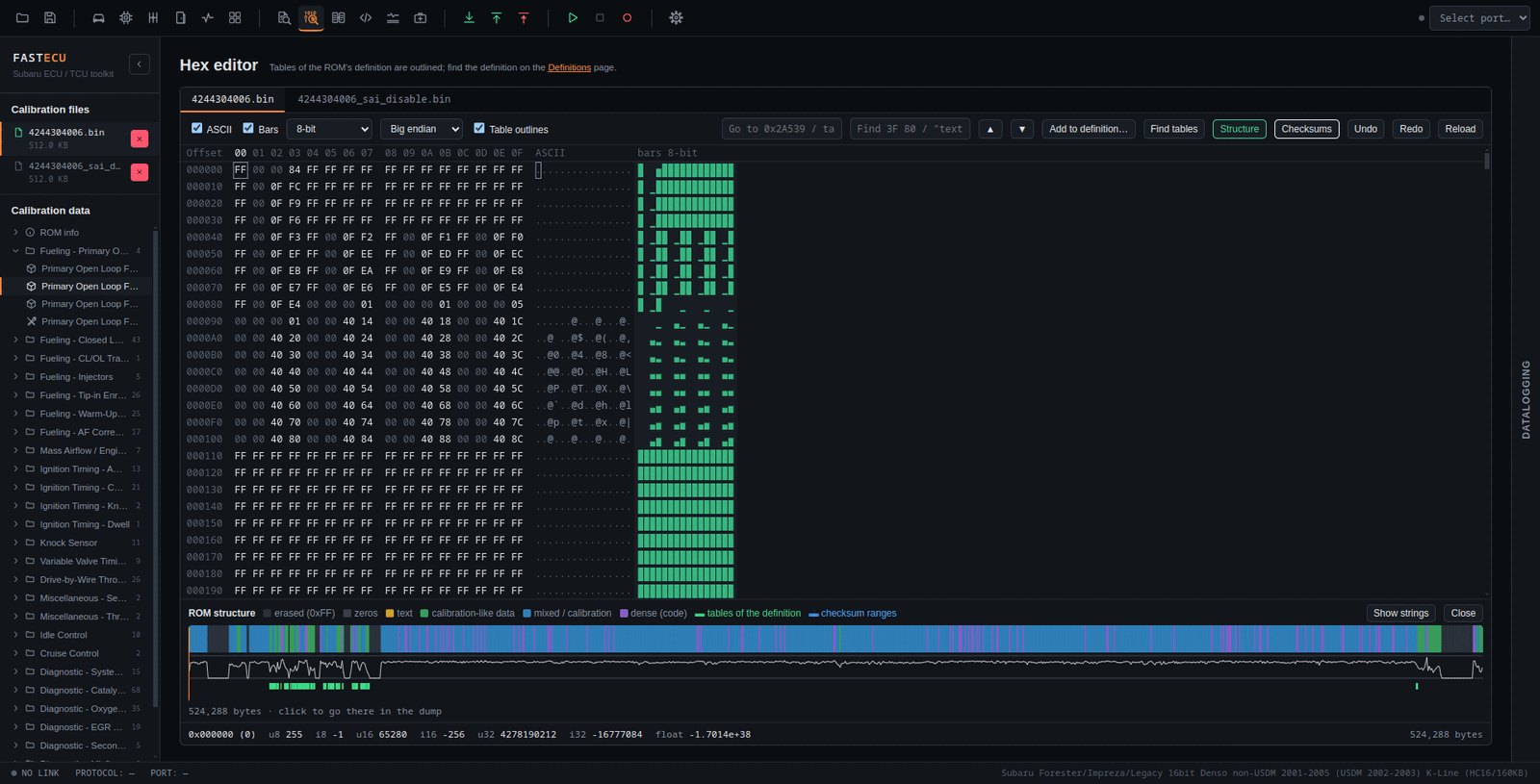
The ROM at a glance. It is cut into blocks coloured by what the bytes look like (erased flash, zeros, text, calibration-like data, mixed, dense code) with an entropy line below. Tables of the definition are green ticks and ranges covered by a checksum are blue ticks. Hover for details and click to jump there. Show strings lists the text in the ROM (ids, copyright lines, part numbers).
Checksums
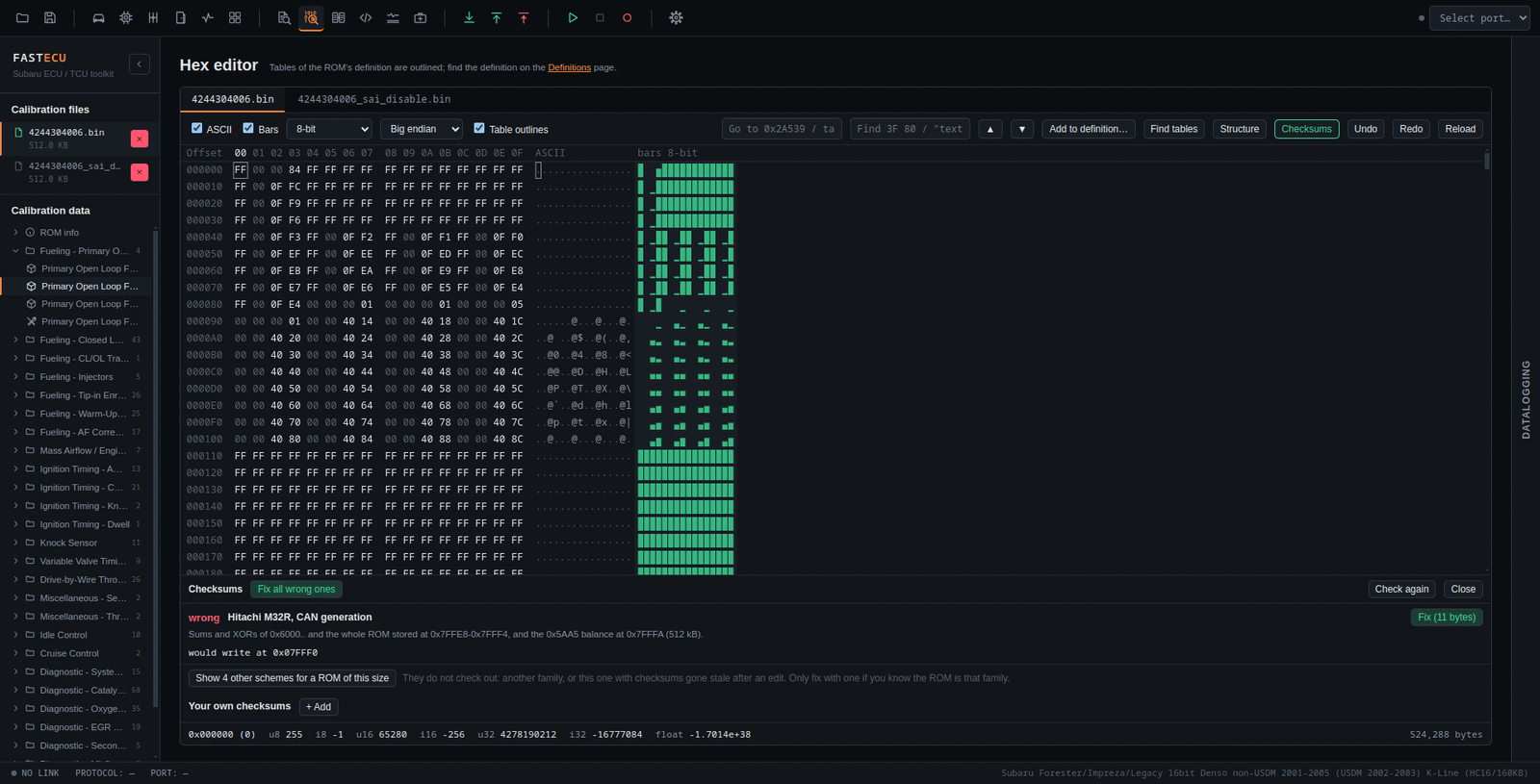
Checks the loaded ROM's checksums without an ECU and fixes them. It runs the same corrections that the write sequences make before flashing, on a copy, and compares.
- A scheme is valid when it would change nothing. Otherwise it is wrong, with the bytes it would write.
- Fix writes them as ordinary hex edits (Undo takes them back). Fix all wrong ones does every wrong scheme that applies.
- The Denso block sum table is found in the ROM itself, so any size or family that has it is covered.
- Schemes that do not match the ROM's size or family are hidden behind Show other schemes for a ROM of this size. They are normally wrong, since they belong to another family. Only fix one if you know the ROM is that family.
- Your own checksums lets you add one of your own.
Any edit to a table makes the stored checksum stale. Run the check after editing and fix what it reports before you save or write the ROM.